
Use an AI assistant
This guide is for users of a running HoHu application. Assistants use business tools authorized for your account. See Configuration and operations for initial models and access, or AI-assisted development for coding workflows.
Run your first query
- Open AI Chat, start a new conversation and check for available models and assistants.
- Select a model. Use AI Auto Routing, or choose a business assistant such as User management.
- Enter a specific query, such as “Find enabled users I am allowed to view.” Send with the button or Enter; Shift+Enter inserts a new line.
- Inspect actual tool execution and results. Add criteria in follow-ups, such as “Only the sales department.” Answer clarification prompts when an object or task type is unclear.
Results follow your account's data scope and do not necessarily cover the entire system. Use the troubleshooting table below if assistants or models are missing.
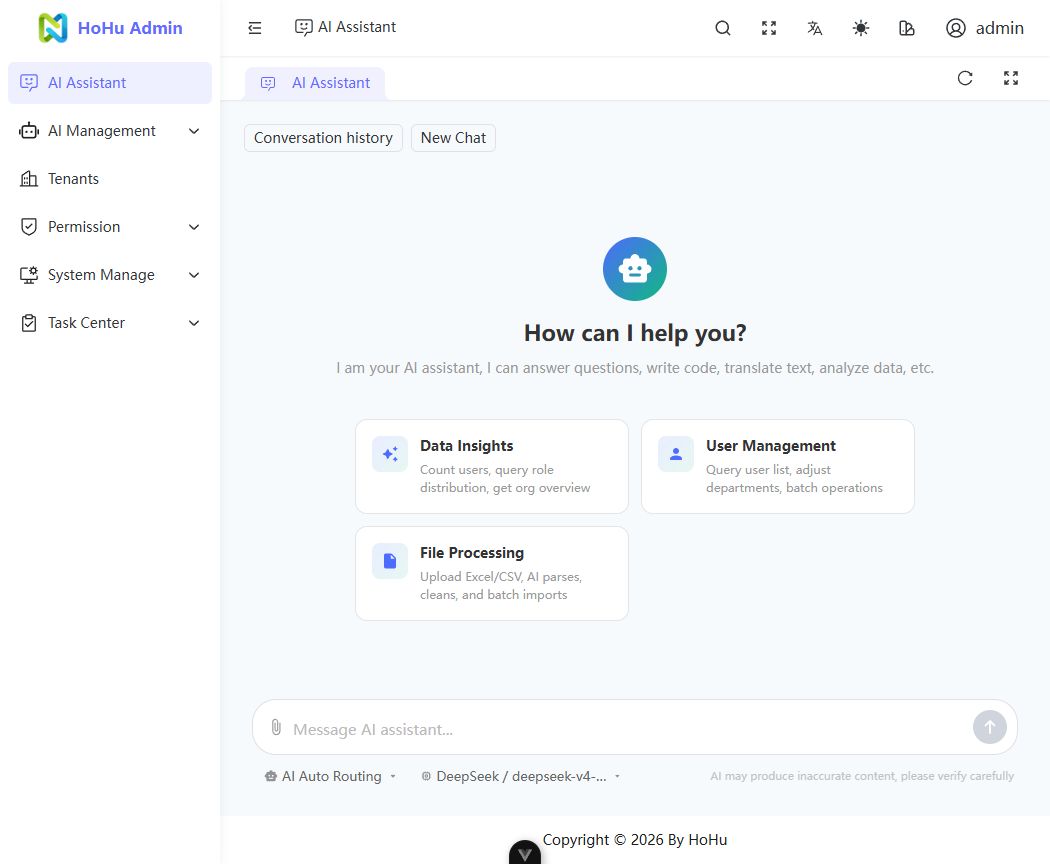
Choose an assistant and model
| Option | Usage |
|---|---|
| AI Auto Routing | Chooses an authorized assistant from the current question and recent conversation, including follow-ups and topic changes; may ask you to select a task type |
| Manual assistant selection | Select a known business domain, such as users or departments; see Published assistants |
| Model | Choose from chat-safe models authorized for your tenant; refresh options or contact an administrator when unavailable |
Routing does not expand permissions. Installing Skills, holding a super-administrator role or seeing a shared label does not grant every business tool.
Confirm an action
For example, replace the account below with an actual account you may manage:
Change the nickname of “example-user” to “Equipment manager”.
An action requiring approval displays a confirmation card or drawer:
- Review targets, new values, impact and expiry. For batches, authorization and deletion, check the complete set and affected count.
- Approve correct actions. Otherwise reject and describe the task again. Expired or handled confirmations cannot be reused.
- Wait for the tool's actual result, then refresh the business page to verify the change.
After a confirmation error or disconnect, restore connectivity, refresh the conversation and inspect execution status before retrying a write. Authorized users can inspect AI Trace when an operation remains running. Approval does not guarantee completion after the browser disconnects.
For single-user creation, the current tenant's System Settings → Require a primary department option determines whether a department is mandatory. When disabled, you can ask to create an ordinary user without a department; when enabled, the assistant requests a valid department after preflight validation. Assigning a department requires department lookup permission and access to that department. Creation still requires approval. This does not change the department-column requirements for file imports.
Read results
| Interface element | Meaning |
|---|---|
| Assistant text | Explanation and summary; verify against tool records |
| Tool card | Running, awaiting approval, successful or failed execution; inspect failure reasons |
| List, statistics or detail card | Tool data; summaries and previews may omit records |
| View full data | Available on some tools; opens the business page with supported filter replay |
| Download file | Available on file-producing tools; download rechecks authorization; re-export or contact an administrator if unavailable |
Permission, tenant or object changes may revoke access to old results and attachments. Current authorization also applies to conversation history.
Files and images
Choose attachments or drag files into the input area. Wait for uploads to finish before sending. Removing an attachment removes its reference from the current message.
| Current Web attachment formats | Prerequisites and result |
|---|---|
| Data files: CSV, XLSX, Markdown and JSON | An available Shared tools assistant, ai:file:parse permission and enabled file.parse; returns structure and limited previews, not every row |
| Images: PNG and JPEG | An available image-understanding (vision) model; otherwise remove the image or ask an administrator to configure one |
Sending an image may switch to an available vision model; follow the interface notice. Declared capability does not replace a real request test. See Files and uploads for format, size and access limits, and Configuration and operations for parsing policy.
History and stopping a reply
- Start a new task with New Chat. Search conversation titles and reopen history.
- Deletion requires confirmation and cannot be undone. Deleting a conversation does not undo completed business actions.
- Stopping a reply interrupts reception of that reply; it does not mean pending actions are cancelled or completed changes are rolled back. Reject an action using its confirmation card.
- Editing and resending historical messages and regeneration are currently unavailable. Send a follow-up or start a new conversation to change your request.
Troubleshooting
| Symptom | Action |
|---|---|
| No AI Chat entry or access denied | Check the AI Chat menu and ai:chat:use permission |
| No assistant to select | Ask an administrator to check enabled status, role bindings and effective tool permissions |
| No available model | Check tenant grants, text capability, model and Provider status, and outbound connectivity |
| Chat works but business actions fail | Check that the selected assistant offers the action, plus business permissions and data scope |
| File cannot upload or parse | Check format, size, Shared tools access, parsing permission and tool policy |
| Image cannot be understood | Check for an available vision model; remove the image for a text-only request if needed |
| Confirmation expired | Start the task again and review a new confirmation; do not reuse the old card |
| Confirmation failed or status uncertain | Restore connectivity, refresh history and inspect tool or business state before retrying |
| Old results or attachments unavailable | Check current authorization and object status; do not bypass it with old links |
| Model unresponsive or AI disabled | Ask the deployer to inspect connectivity, logs and the AI switch |