
System settings
System settings control HoHu’s built-in behavior. Change the site name, logo, registration, default language and upload limits without editing source code.
Open System Manage → System Settings. Viewing requires settings access; saving also requires edit access. Application-specific key/value settings belong in the separate Custom parameters page.
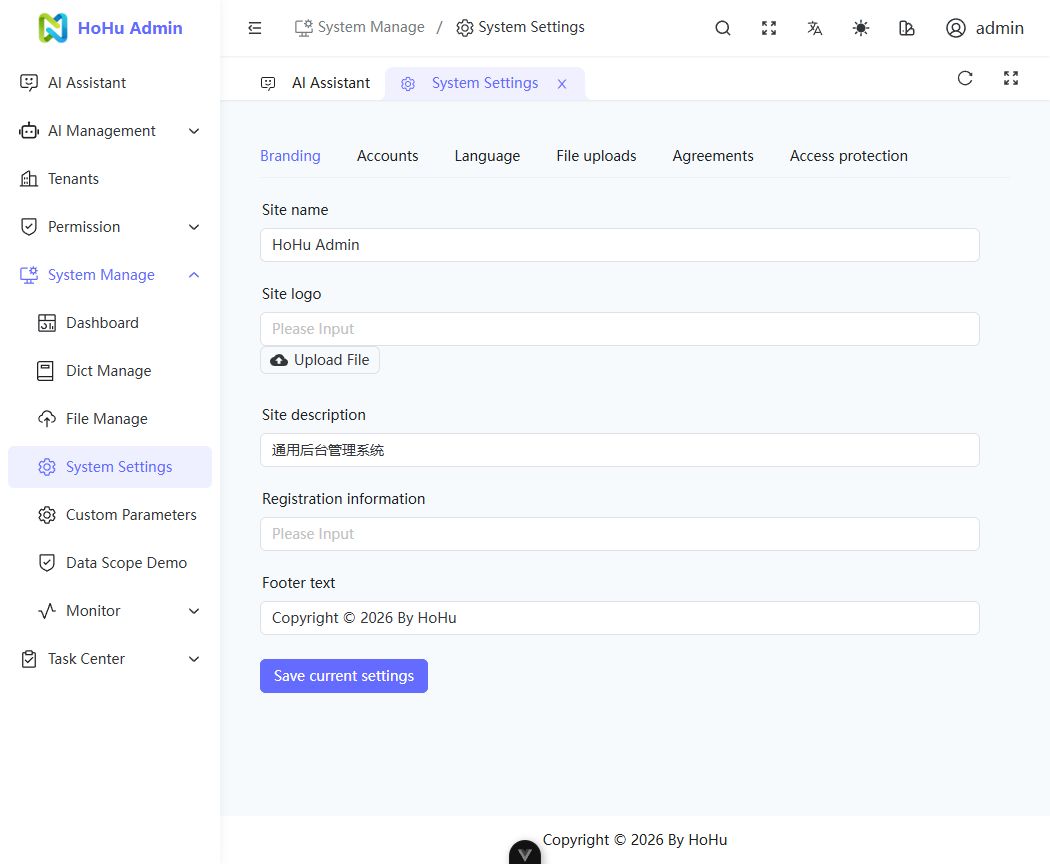
Save and apply settings
- Choose a group, such as Branding.
- Edit its fields and click Save current settings.
- After the success message, check the resulting interface.
Saving submits only the active group. Switching groups preserves unsaved drafts; leaving with unsaved changes prompts you. Client settings such as branding and language refresh after saving. Other open clients may need a page refresh.
Most settings apply to the current tenant. Access protection is system-wide and is managed only by system super administrators in the default tenant.
Branding
| Field | Purpose |
|---|---|
| Site name | The name used by the application interface |
| Site logo | A logo URL, or an image selected through the upload button |
| Site description | A short introduction to the site |
| Registration information | Registration text that the site needs to display |
| Footer text | Text displayed at the bottom of the application |
For example, change Site name to your team’s application name, save and check the interface. Use an accessible image URL for the logo. Uploads still follow image type and size limits. Brand text is stored as entered and is not automatically translated.
Accounts
Registration and recovery also require available email service. Follow Account self-service to configure them.
| Field | Effect | Recommendation |
|---|---|---|
| Default avatar | Used when a user has no individual avatar | Use a stable, accessible image URL |
| Registration enabled | Controls registration availability | Disable for internal systems where administrators create accounts |
| Require a primary department | Requires department ownership for users | Prepare the department structure and existing user assignments first |
| Default password | Used by account creation/import flows that support a default password | Use a value meeting the password policy and review its use |
Password fields never show the saved value. Submitting an empty field preserves it; it does not clear it. Changing the default does not change existing users’ passwords.
Mail service
Only system super administrators in the default tenant can manage deployment-wide SMTP. Tenant administrators cannot view or change the shared email configuration.
- Open System settings → Mail service and enter the SMTP host, port and encryption mode (TLS or STARTTLS).
- Enter the username, password or app password, sender address and sender name. Enable mail and save the current settings.
- After saving, send a test email and check its result, the inbox and spam folder.
- Once sending works, enable registration or recovery for the target tenant.
Saved configuration applies to subsequent sends without restarting. Credentials are encrypted and never displayed; blank input preserves them, while Clear removes them. A successful test means SMTP accepted the message, not that it reached the inbox. Configuration changes invalidate the previous test result.
Account self-service
Open System settings → Accounts in the target tenant. Confirm that email is enabled and fully configured before saving the desired policies.
| Setting | Default and effect |
|---|---|
| Allow registration | Off by default; creates accounts in the current tenant, not new tenants |
| Allow email password recovery | Off by default and independent of registration; users need a verified recovery email |
| Email code lifetime | Defaults to 5 minutes, configurable from 5–30; changes affect newly issued codes only |
| New registration role | Personal account access only by default; an enabled non-management role in the same tenant may be selected, never a management role |
After saving, check the registration and recovery links on that tenant's login page and verify the steps in Account and sign-in. Administrators can assign business access and departments to registered users who have no business menus.
Disabling shared email pauses mail-dependent registration, recovery and email verification across tenants; password sign-in remains available. Registration, binding and recovery codes are not interchangeable. Resending normally requires a 60-second wait. Each code permits five checks and each verification identity permits 30 checks per hour; sending also has email, IP and tenant quotas.
Upgrading to the account self-service version closes existing registration settings while preserving users, passwords and roles. Configure mail and explicitly reopen registration. Retain the deployment key when backing up and restoring mail configuration; see Configuration ownership.
Language
The default language applies to users who have not selected their own language. Resolution order is user preference → tenant default → deployment default.
Chinese and English are available. Switching translates interface labels and built-in names linked to translations. Your branding, department names, agreement text and custom parameters stay as entered.
File uploads
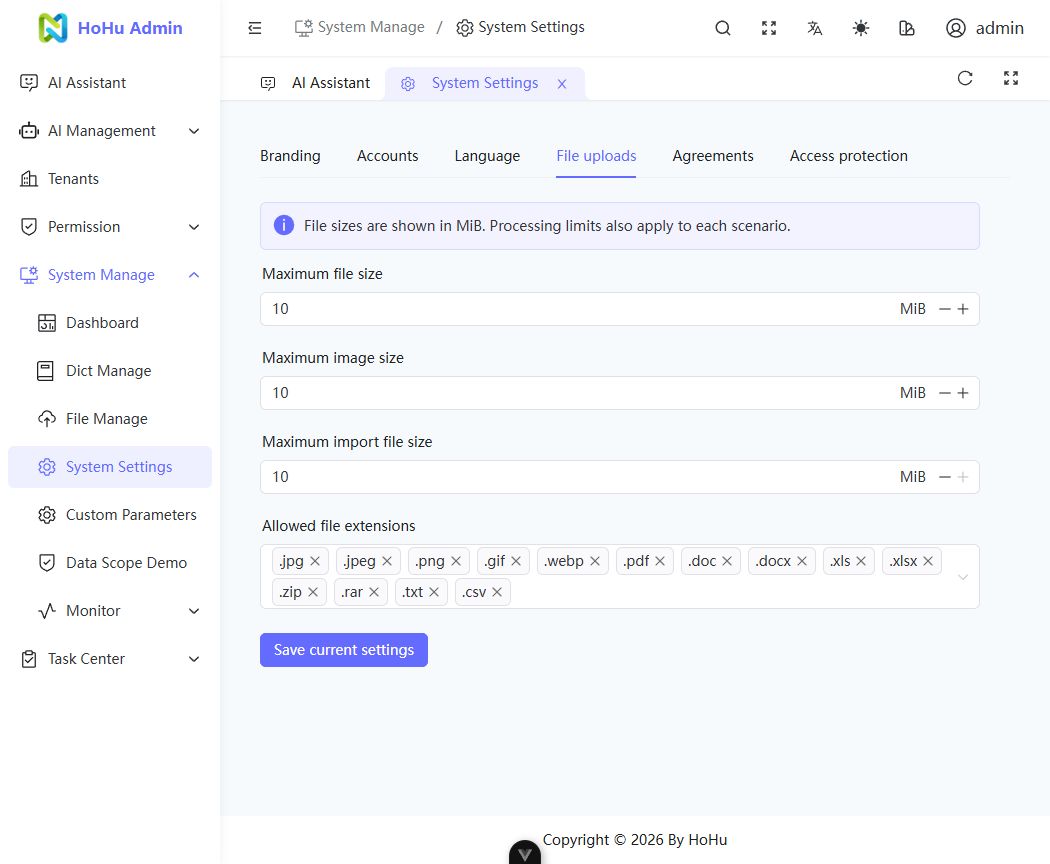
| Field | Meaning |
|---|---|
| Maximum file size | The tenant’s general per-file limit |
| Maximum image size | The image-scenario limit |
| Maximum import file size | The spreadsheet-import limit |
| Allowed file extensions | File types allowed by the tenant |
Sizes are displayed in MiB; 1 MiB is 1,048,576 bytes. All three size fields initially default to 10 MiB.
To limit images to 5 MiB, set Maximum image size to 5 and save. New uploads use the limit; reducing it does not delete existing files.
Deployment and processing limits also apply. An extension must be allowed by both the tenant and the upload scenario: enabling PDF does not make avatars accept PDF files. See Files and uploads.
Agreements
Maintain the user agreement and privacy policy text for your site. These are your business content and are not automatically translated. Editing the text does not replace any notice process your organization needs to follow.
Access protection
| Setting | Default | Allowed range |
|---|---|---|
| Login requests per minute | 5 | 1–100 |
| Registration requests per minute | 3 | 1–30 |
| API requests per minute | 100 | 10–10,000 |
These control rate limits for the respective requests, not the total number of users the site supports. Lower values may affect normal activity. Excess requests receive 429; retry after the interval returned by the server.
Troubleshooting
Why can’t I save or edit? Check that your role has settings edit permission. Custom parameter permissions are separate.
Why is Access protection missing? Only system super administrators in the default tenant can access it.
Someone else changed the settings. What now? Keep a note of your edits, reload the latest values and merge your changes. Revision checks prevent overwriting another administrator’s updates.
Where do I configure databases, Redis and model secrets? Deployers maintain infrastructure connections; AI Management handles model configuration. See Configuration ownership and AI setup.